Installation
For the most up-to-date features and fixes, download the addon directly from the official GitHub repository, manually or via command line. The GitHub release will always be the latest version, as updates are available immediately, whereas updates from the Godot Asset Library may take a few additional days due to the approval process.
Note
The built-in update checks also look for the latest GitHub release.
Installing
via Command Line (Recommended)
Open your project folder in your favourite terminal. And run the following command:
via Official Releases
Grab the latest release here, or get it from:
Manually
- Extract the downloaded zip file, move the content inside
addons/folder to your project'saddons/folder.
In-editor
-
Go to the
AssetLibscene tab. -
Click
Import...on the top right corner. -
Select the downloaded zip file.
-
Make sure
Ignore asset rootis checked, and then clickInstall.
via Godot Asset Library
-
Go to the
AssetLibscene tab. -
Search for
"Theatre".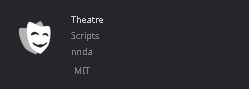
-
Click
Download, and wait for the download to finish. -
Make sure
Ignore asset rootis checked, and then clickInstall.
Enabling the Plugin
Make sure that Theatre is enabled at Project > Project Settings... > Plugins.
You should see the following on your console output.
Updating
via Command Line (Recommended)
-
Disable Theatre plugin and close your project.
-
Open your project folder in your favourite terminal. And run the following command:
-
Enable the plugin.
Manually
-
Disable Theatre plugin and close your project.
-
Delete
addons/Theatre/folder. -
Re-install it via official releases manually.
-
Enable the plugin.